Friday, March 8, 2013

Storia on the iPad

Storia is a reader app for Scholastic eBooks.  You can purchase eBooks with your regular Scholastic account.  You can even use your points to purchase eBooks.  Below is a short demo video of Storia:


Here are some additional things to know about Storia:

  1. Storia allows you make up to 40 bookshelves which you can name, however, it is best not to use student names.  Many teachers use genres or reading groups to name their bookshelves.
  2. You can sync up to 40 devices on your Storia account.
  3. When you shop eBooks, you can download their free book of the month that appears in the scrolling images.  This month there are two easter books that are free:


 Easter Eggs Everywhere! - The Easter Bunny's running late for Easter, and none of the eggs have been decorated! So when a sly fox offers to sell the Easter Bunny a super-duper egg-painting machine, he takes the fox up on the offer. But the machine doesn't work as the Easter Bunny hopes, and now he's in even bigger trouble! How will he get all the eggs ready in time for the big day?
Ogres Don't Hunt Easter Eggs - It's been raining ever since Brutus Bigg arrived in town. And even though he's supposed to fix up the park for the town Easter egg hunt, he seems to be messing it up so no one will go there and bother him. Is Mr. Bigg an ogre trying to claim the park as his home? The Bailey School kids are going to find out...but will they be able to stop him in time for the Spring Festival?

I personally had some trouble getting the free books downloaded, but called up Scholastic and they were most helpful in getting them into my account.  In fact, they offered to add more than one copy so I could put it in all my bookshelves.  Since you can only put one copy of a book on one bookshelf, this would have been great if I wanted multiple reading groups to read the same book.

Wednesday, March 6, 2013

Website Wednesday

Posted from Diigo. The rest of my favorite links are here.

Tuesday, March 5, 2013

Tools to Use Right Away

I attended a librarian workshop in Dodge City on Saturday and heard some great presenters on various technology and book topics.  One of the sessions focused on websites and apps to use in the classroom and library.  Here are the ones I thought were the best...


readthinkwrite - Student Interactives

You have been to this site before, but I found out there are student interactive games, graphic organizers and more that you can access.  You can refine your search by grade level, type of interactive tool, learning objective and more.  Some interactives include Trading Card Creator, Cube Creator, Letter Generator, Compare & Contrast Map and more

Being a fan of the old Fractured Fairy Tales on Rocky and Bullwinkle, I found this interactive centering around fractured fairy tales.  Students get to read an animate fractured fairy tale and then write their own.  Here are a few screen shots of this interactive tool:


Too Noisy - This free app helps you monitor the classroom noise level.  You can adjust the sensitivity level on the app.  If the noise level gets too high, your smiley face starts to frown.  You could project this on the screen when students are working with partners or in small groups to help them keep track of the noise level.


Random Name Selector - This free app randomly selects student names from the magic hat.  All you do is add a group and then add names to your group.  Then you hit the ? to have the hat select a name.  The hat will go through all the names in your group before putting everyone back in for selection.


Chicktionary Lite - This free app provides you a set number of letters to create words from.  You are given the how many words and how many letters per word that you can make from your collection of letters.  The twist?  Everything is chicken and egg related.  A great appeal for kids!


Monday, March 4, 2013

Cool Stuff from TIG

I attended my Tech Integration Group this past Friday at Essdack and left with some great tools & ideas to share.

Upcoming Workshops through Essdack

April 2, 2013 - Workshop on eBooks & how to make them

May 29-31, 2013 - Wind Energy Workshop (based on a STEM Initiative)
You will spend the 3 days building wind turbines.

July 17-19, 2013 - Podstock
A tech integration conference for anyone interested in learning more about technology.

Show-N-Tell

COOL Furniture - We tried out a standing table and Hokki Chairs.  The table is great for having small group conversations or getting up and working on the laptop or iPad.  The chairs have a curved bottom so students can rock and move in their seats.  Great for those antsy kiddos & adults.


EssayTagger - Common Core Rubric Creation Tool (no registration or login required)
You can print, save as a pdf or download any rubric you create.

tellagami - Great digital storytelling tool available on the iPod and iPad.  You insert your own background images, create your avatar and record your story.
Class ideas:
  • What I did on my Summer Vacation
  • Explain a historical image
  • Give background on a historical figure
  • Book report using the setting as the background image
  • Create a real-world math problem
Makey Makey - this one you just have to see to understand


MaKey MaKey - An Invention Kit for Everyone from jay silver on Vimeo.

Six Strike Copyright Law

So, this was new to me, but basically it is a warning system for people who are downloading from sites with pirated materials.  Some Internet Service Providers are implementing this process already.  We looked at a few sites that had samples of the alert messages and a little more information about Six Strike Copyright Law.  During our discussion, we questioned how this would impact schools, but I don't think we'll really know until this gets into full implementation.


If you want to know more, check out these sites:


Alternate Book Reports


At the end of the day, we had a Skype presentation on creating infographics with powerpoint (or any slideshow program).  However, I will write this up later as a separate blog post.

The best trivia I learned on Friday was "Rabbit, rabbit, rabbit."  This is a common British superstition which is also popular in the United States, especially in Nantucket, Cape Cod and other towns within Massachusetts.  The premise is to wake up on the first day of the month and say "rabbit, rabbit, rabbit." By doing so, you are suppose to receive a present by the end of the month.  Stash this trivia fact away in case you end up on Jeopardy one day!


Images:
Hokki Chairs - https://blogger.googleusercontent.com/img/b/R29vZ2xl/AVvXsEgAnitjGyK_AQr5R2RQDca47Hk8AaOQUx8-8FCMyHYUzurM30OBrFmZcxNtFXqSTEwjJF5gqafrk9Oyei7BEEqWsYqZvF603BmAsxLBBNZNRkzXhjZH3EMkhI6OOe3kyEQxRwo8e73nm5A/s1600/hokkigroup.JPG
Books - http://www.talkshoe.com/custom/images/icons/TC-17371-MainIcon.png
Rabbits - https://blogger.googleusercontent.com/img/b/R29vZ2xl/AVvXsEiHksxWh4h7TPRWC-Ndb9UDEjKHqu16m60hBYEW1L4XEIT3XaO3EBlS0lp14UuqZxIc9vRYqP_RNuilaA03yOnSKL_JF5vspxi-pwedKhuf-GSp962JvujXFEO9u5CDNZARZ6svB9Kpr7ES/s1600/rabbits+rabbit+rabbit.jpg

Thursday, February 28, 2013

Website Wednesday

Posted from Diigo. The rest of my favorite links are here.

Tuesday, February 26, 2013

What to do with a snow day!

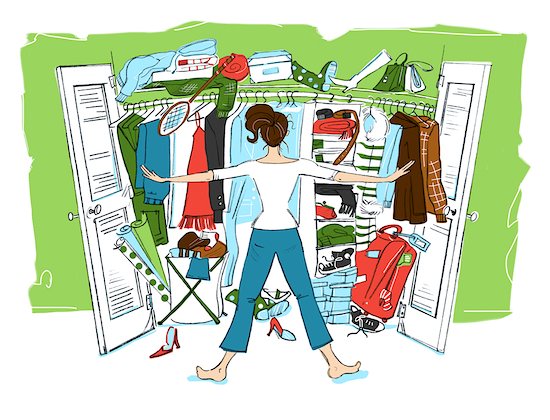
We are into our 4th snow day with a weekend in between!  Ever wonder what educators do on their snow days?  Some will spend time entertaining their children who are also stuck at home.  Some will watch movies, read a good book, play video games and shovel their sidewalk and driveway.  Some will clean their house, cook or bake, and clean out that closet that has been haunting them for months.  A few will get out the computer and write up lesson plans or search for new lesson and classroom ideas to pin on Pinterest.  While an even smaller percent will work on that college class they are taking and try to complete the project that is due this week.

Grandmother's door and window
So, what did this techie do with her snow days?  A little of everything and then some.  I did the basic catching up on daily tasks like cleaning my desk, balancing the checkbook (yuck!), reading the past comics on my Zits calendar and tackling some other items on my to do list.  I played Solitaire and Flow Free on the iPad, read a book - Throne of Glass by Sarah J. Maas - and watched a couple of movies with the family.  I did skip the cleaning house and opted to tackle the laundry instead.  I also shoveled the sidewalk so my Grandmother could open the door to her "apartment" in the basement.  I did keep tabs on email and Pinterest with my iPad, but didn't really break out the computer for some serious work until Saturday.  I started thinking about the number of computer hard drives that have crashed lately on teacher computers and decided it was time for me to do something to protect myself in case this fate fell on me - yes, even techs can have their hard drives crash on them.  So, I decided to start backing up my documents to Google Drive.  Here's what I did:

1.  I started by creating folders to organize my documents.  Like any good organization system, it had to be something that made sense to me.  Google allows you to put folders inside of folders, just like your documents folder on the computer.

2.  I uploaded all formats of documents - Word, Pages, Keynote, pdf, etc.  I also upload images, videos and a few audio files.  While I can't directly open some of these files in Google, I can download them onto my computer - or a new computer if something happened to mine.  I also weeded out any files and documents that I don't need or use any more.

3.  I deleted documents and files from my computer that I don't use regularly or are a pdf format after I uploaded them to Google. This was a personal choice, which allowed me to free up some space on my computer.

After I finished with this project, I moved on to my photos.  While I don't have thousands of photos on my school computer, I do have quite a few on my personal computer.  Since I already have a gmail account, I decided to use Picasa - this is a Google product - to store my photos in the cloud.  I did discover that Picasa with my school email looks different than with my personal email.  I have a Google+ account with my personal email which accounts for the difference.
Picasa with school account

Picasa with personal account


Here's how I got started:

1.  I went to the Picasa website - https://picasaweb.google.com/home

2.  Logged in with my email account.  If you are using a personal account, it will have your sign up Google+ as part of the process.  What is Google+?  In a nutshell, this is Google's version of Facebook.

3.  I clicked on upload, entered the name of my album and did a drag & drop of photos from iPhoto into the album.  This worked in most cases, but I did have a few times when I had to take the photos from iPhoto, put them in a folder on my desktop and then drag them over from the folder to upload them into Picasa.  I don't know why, but as long as I had a work around I don't care about the why.

Since doing this with my photos, I found that I can send directly to a Flickr account from iPhoto.  Here's how:

1.  Open iPhoto

2.  Click on Share

3.  Choose Flickr

4.  Choose set-up

5.  Select login with Google - if you are using your school account or some other gmail account.  If at some point if you want to add another Flickr account, perhaps a personal account, you can go into the Preferences for iPhoto and add another Flickr account.

6.  Once you've authorized the Flickr account to iPhoto - read and follow the instructions - you can start uploading photos.

*Note:  If you have movies within an event, then make sure you go into the event and just choose the photos to upload.

You'll notice that under the 'Web' section in iPhoto, you can access your Flickr and Facebook photo sets.  This will let you see what you have already shared to those accounts.  I must admit that this was a faster process than Picasa.  There is also an option to set-up Photo Stream, but I didn't venture into that area yet.  Maybe on the next snow day!

I finished up with my photos on Sunday and decided it was time to tackle the music.  I don't know about others, but I have more music and audiobooks on my computer than photos.  I think it's because I work better with music playing in the background.  I'm one of those people who would love to have theme music playing as I go through each day.  Sometimes a piece of music does pop into my head and starts playing during certain situations.

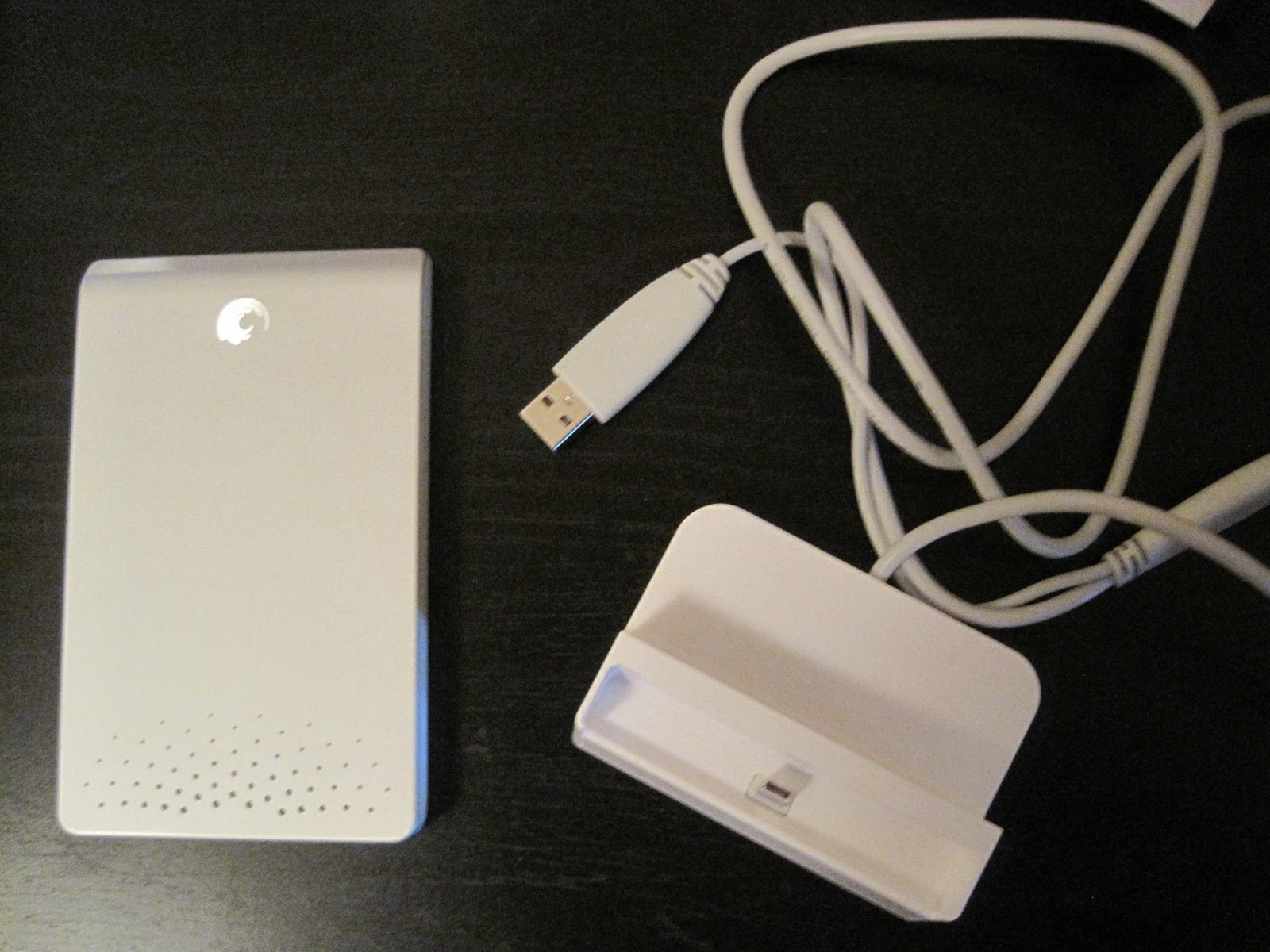
Other than having my music on a mobile device, like the iPod, I don't have a cloud solution for storing my music yet.  So, I depend on a portable external hard drive.  A few years ago, I purchased the Seagate FreeAgent Go Mac 640 GB.  (They don't sell this model any longer, but you could pick up a Seagate Slim Portable Drive for Mac which is comparable.)  I still have over 500 GB of space available and that's after 28 audiobooks, 19 movies, over 3,500 pictures and over 2,400 songs.  That doesn't count all the documents I also have backed up on this device.  If I wanted, I could just use this litte portable external hard drive to back-up all the files on my computer.