Wednesday, September 24, 2014

Website Wednesday


Posted from Diigo. The rest of my favorite links are here.

Monday, September 22, 2014

Too Many Passwords! Pt.2

Image by Perspecsys Photos CC License
People store information, like usernames and passwords, in various formats, the key is to find the format that works best for you.  Like buying shoes, you might need to try several options before you find the right fit for you.  Once you find a method for storing or recording your passwords, make sure you keep it in a secure place.  Here are a few options for storing or recording your plethora of passwords.

Save them in your browser - When you log onto a web site for the first time, most browsers now ask if you want to save your password.  This is an option many people utilize so they don't have to remember those pesky passwords.  You can always go into the preferences and view or remove your passwords for specific websites.  Thanks to the syncing functions on Chrome, Safari and now Firefox, you don't have to worry about your computer crashing.  Those passwords are saved so you can just jump on another computer, log yourself in on the browser and have instant access to your saved passwords.

The drawback?  If someone steals or hacks your computer, they too have access to your saved passwords.  Another issue I've noticed with the saved passwords is the need to update your current password to a new password.  These browsers don't remove the old saved password, but create a new site entry in your saved passwords which can result in the wrong log in information auto-filling on a website.  The result - the "incorrect username or password" message.  Your best option is to go back to your preferences and remove the entry for the old password before saving the new password.

Image by Perspecsys Photos CC License
Password Managers - Many business people rely heavily on password managers like Dashlane, 1Password and LastPass.  These tools allow you to enter all your usernames and passwords for various websites, but then you create one strong master password so you can access all your usernames and passwords.  (It sounds like Lord of the Rings - "one ring to rule them all.")  I'm not sure about the drawbacks as I have not used a password manager yet myself.  However, like all things digital and stored in the cloud, you do take the risk of hackers accessing the company files, including your passwords.

For more on Password managers, check out these resources:
How Password Management Software Works
The Best Password Managers
2014 Best Online Password Manger Reviews

Create a spreadsheet - Use a spreadsheet creator like Excel or Numbers to create a document for storing your password information.  You might include columns for username, password, website name, and website link.  You might also want to include what email address you associated with that site.  The benefit of using a spreadsheet over a document is the ability to sort your information.  On the downside, the spreadsheet is only available on your computer so if you use a different machine you won't have access to your usernames and passwords.  One option for avoiding this problem is creating an online spreadsheet in Google Drive.

Little Black Book - When you say "Little Black Book," most people think about the bachelor's
Image from Pixabay
notebook full of names and numbers for women they call up and ask out on a date.  Some record additional information, but we won't go into that here.  Well, the same principal can be applied with your usernames and passwords.  A little notebook can be purchased for a couple of dollars and doesn't have to be black.  In your notebook, you write down the name of the website, your username, password and email address associated with the account.  I've known several teachers who have used this method for storing their passwords.

Drawbacks?  Finding a secure place to keep your little notebook without anyone else getting access to your information.  You also need to make sure you carry that little notebook around with you so you can access your passwords any time, any place.  Finally, you cannot sort your information.  So, it may take you longer to find the password you want depending on your notebook organization.  If you just add new entries when you create an account, then there is no way to easily search for a website.

Use an address book - While this is similar to the little black book method, this format allows you to at least alphabetize you entries by the website name.  It will cut down on your search time, but you are still tied to carrying your book around so you can have the information on hand.  You also have the obstacle of finding a secure place to store the book away from prying eyes.

You could go digital and use the contacts on your cell phone to record your usernames and passwords, but like the issue mentioned earlier with the computer, your accounts could be compromised if your phone is ever stolen.

Wednesday, September 17, 2014

Website Wednesday

  • Basketball themed game allowing students to practice their addition, subtraction and
    Math Madness
    multiplication. Game is geared toward grades 1-5, but the easy settings for addition and subtraction include double digits. It is an easy play game that will take the boredom out of drilling math facts. Thanks to Kayla Long for this contribution!
Posted from Diigo. The rest of my favorite links are here.

Too Many Passwords! Pt. 1

Image by josephleenovak CC License
As our district tech director says, passwords are like keys.  Your house key and your car key are not the same or interchangeable and your passwords should be just as unique.  However, the biggest challenge is trying to remember which one you set for each account.  As a result, many of us just use the same password for multiple accounts, making our accounts easier for hackers to access.  Below are tips for making stronger passwords.


Types of passwords to avoid:

Simple passwords - Avoid creating basic passwords like 12345, asdfg or "forgot your password"


Easy to guess - This includes the names of your children, spouse, pets or favorite sports team.

Significant dates - Significant dates like birthdays and anniversary are too easy to access and guess.  If you use a date choose something that isn't obvious, like your favorite year in history.


Ideas for creating a strong password:

Minimum of 8 characters with lower case, caps, numbers and a special character - Although most tech specialists will recommend 12 to 14 characters for a password, you can get by with eight.  However, avoid going any lower as it makes the combinations easier to guess.

Create an acronym from a phrase - You can create a phrase that includes dates and team names like "1966 was the best year for the Green Bay Packers," so my password would become 66BYGBP.  You could also use a favorite phrase from one of your relatives.  My grandmother is notorious for saying "waitonce."  Here's one way I could turn that into a password - GmaW80nc3

Substitute numbers and symbols for specific letters - In the phrase Grandma Wait Once, I substituted the number 8 for anything with that same sound, the o in once became a zero and the e on once became a three.  You could set up any substitution you wanted, for instance the letter s could be changed our for the number five or a dollar sign.  Just set a pattern for yourself and stick to it.

Relate your password to a favorite hobby or sport - You could create a password out of your hobbies like readingwalkingknitting and then make some number and/or symbol substitutions.  You could also make a phrase out of your favorite sport.  For instance, The Edmonton Oilers Rock becomes 3dm0nt0n0il3rsR0ck.

You can create passwords that mean something to you, just make sure you mix it up so it's not easy for hackers to guess.

Too Many Passwords! Pt. 2 will cover ideas for remembering your usernames and passwords.

Monday, August 25, 2014

The Google Drive Application


Last year and this past summer, several of you installed the Google Drive application on to your computer.  If you are needing to install this application on your computer again, please scroll to video below.  It will walk you through the process.  If you are new to the Google Drive application, then read on!

The Google Drive application gets installed on your computer desktop allowing you to sync your files between your desktop and the web.  You may be asking yourself what that means.  It means if I'm working on a Pages document, I can save it to Google Drive, either through the Google Drive folder on my computer or via Google Drive on the web.  While I can't edit the Pages document on the web, I can open and edit it through the Google Drive folder on my computer.  This means if my computer ever crashes I still have my Pages document.  I haven't lost it.  It also means if I have a computer at home with Pages on it, I can install the Google drive folder onto that computer and open/edit my Pages document without having to email it to myself and then email it back to myself for the next day at school.

Maybe you're thinking, that's nice, but I don't use Pages.  That's ok.  The other advantage of having the Google Drive folder on your computer is getting to your files faster.  If I need a specific file in Google Drive, I can either run a quick search on my computer or go straight to the file in my Google Drive folder.  I click it on and it instantly takes me to the file on the web.  I might need to login, but I just cut down the number of steps it took me to get to that file.

Personally, I have started using Google Drive as my own online storage for almost all of my files.  I've started storing videos, images and audio recordings in my Drive along with all my regular word processing files and spreadsheets.  The only drawback is you only get 30GB of storage.  For most people, that is plenty of storage, but for the video and photo hounds out there this might not be enough storage.

Installation Instructions
Before you install the Google Drive application on your computer, please make sure it's not already on your computer.  You can do this by going to your applications folder and looking for the application Google Drive.  If it is already in your list of applications, then click it to open.  If it is not in your list of applications, then follow the instructions in this video:


Tuesday, June 10, 2014

Google Drive Face Lift

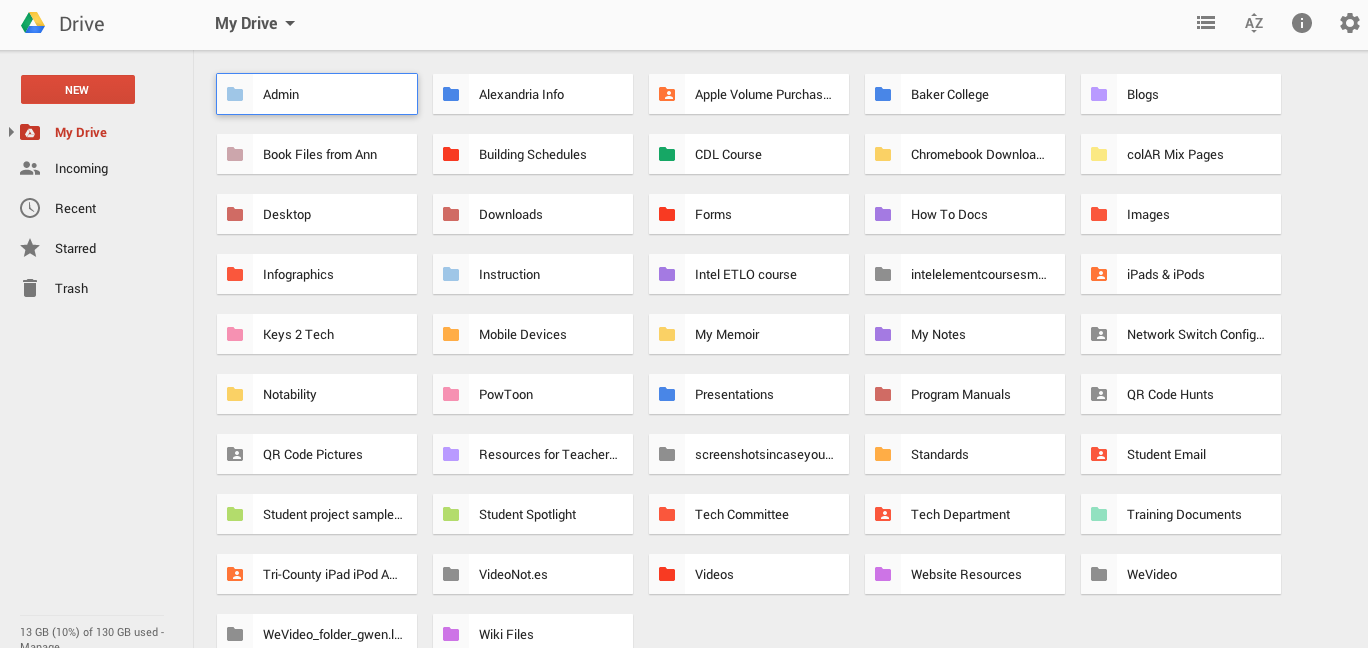
The continual shifts and changes in technology never cease to amaze me.  I just finished Google Drive training two weeks ago, and while we had a great time discovering how to make Drive work for us, Google just introduced it's new Google Drive look a couple days ago.  I actually like the new, cleaner look, although there are a few changes in where things are located and how they function.

New Look for Google Drive

Let's take a look at some of those changes and help you get acquainted with this new look:

1.  Shared with me - This is now referred to as "Incoming."  It is still in the left-hand column directly under the My Drive folder.  When you click it on, you see the documents listed as...

  • This week
  • Last week
  • Older
When you look at the files themselves, you will see who shared the file first followed by the file name.  If you have added a file to a specific folder you created in Drive, it will show you that information too. 


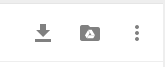
 This is all you will see until you place your cursor at the end of the file.  Then you have options for downloading the file, adding it to My Drive (if you haven't already done this), and more actions (the 3 little dots).  Your options under more action may be limited due to the defined sharing settings given to you by the owner of the document.  If you can only view or comment on the file, then the Share and Rename options are grayed out.  The Share icon will even have a line drawn through indicating that you cannot share that file with other people.  Also under more action is Open with..., which allows you to choose what application you want to use to open that file.  Naturally, if you just click the file it will open for you in Google Drive or in a preview window.


At this time, I have not found a way to sort your Incoming files by owner, so all the files are sorted by date.

Settings Icon
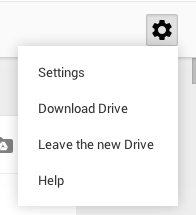
2.  Settings icon - This has also received a more streamlined look.  In the past, you had more options under this icon related to how uploaded files would be converted.  Now everything is accessible when you choose settings under the icon.  You can set-up how files will be converted when they are uploaded to Google Drive, as well as managing the apps you've connected to in Drive and Chrome.

You can also Download Drive to your computer from this location.  If you recall, you had to choose Install Drive, which was tucked away under More in the left-hand column.

Currently, you have the option to experience or leave the new Drive under the settings icon, but that option will go away soon.  My suggestion...embrace the change now.

New Button
3.  Red New Button - This use to say Create and had an upload icon right next to it.  The New button has it all.  The ability to create new file types (documents, spreadsheets, drawings, folders, etc.) and the ability to upload files to Google Drive.  A new feature under this button is uploading folders to Google Drive.  This has not been possible in the past, so it is an exciting new feature!  Like before, you can get connect to more apps that can be used with Google Drive documents and spreadsheets through this New button.

4.  Working with Files - Before the new look, a single click on a file or folder would open it up for you.  If you wanted to select a file or folder and do something to it (move to the trash, share with other people, etc.), you had to click on the check boxes.  Now, a single click simply selects that file or folder so you can make changes to it.  You can even select multiple files or folders by holding down the command key (on a Mac) and click what you want to select.  If you actually want to open the file or folder, you have to double click.

Another change is where you go to make specific changes to files and folders; changes like sharing, organizing, previewing, etc.  In the old look, all those features were located under the word More at the top of your Drive.  Now the those options are available through icons at the top of your Drive and via the 3 little dots, also at the top of your Drive.  Check out the differences in the two images below...

Old Look

New Look
5.  Search - While this feature isn't new, or even changed for that matter, many people don't realize they can do a quick search for specific files.  This is a handy feature, especially if you have a large quantity of files in your Drive.  You can do a basic search by typing in part of the file name in the Search Drive box.  As you are typing, Drive will start displaying a short list of potential matches, however, if you hit return it will give you a full list of files with that word or phrase in the name.  The catch to this search is when you use more than one word they must be in the same order as they are in the file name.  For example, if I name a document Summer Projects 2014, I can search by individual words (summer, project, 2014) or even by the phrase summer projects; however, if I search by 2014 summer, I won't find that file.

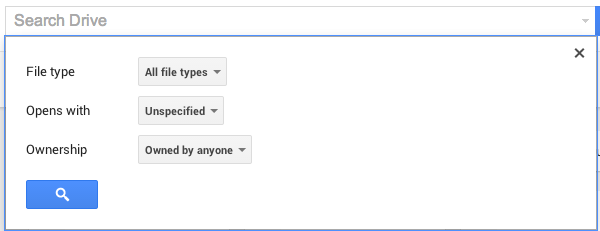
Advanced Search Options
The search feature does have some advanced searching capabilities.  These include searching by file type, ownership, and opens with (designating what application the file should open in).  This can be useful if you have 20 summer project files but some are documents and others are spreadsheets.  You could at least narrow your search by adding the file type indicator along with the phrase summer project.  If you only created one of those 20 summer project files, then you could choose to search by ownership.

Want to try out the new Google Drive?
  • Go to the Settings icon - looks like a gear wheel on the right side of your Drive screen
  • Choose Experience the New Drive
 Enjoy the NEW Google Drive!