Educators are using Tackk in a wide variety of ways in the classroom. From daily announcements to
creating digital portfolios, the possibilities are endless. The ability to comment publically and privately allows for collaboration between teachers, students, or even with other classes.
Think "fantasy football for social studies, literacy standards, and world news. Great way to get students engaged in learning!
ePals
ePals is an ideal way to collaborate with other classrooms around the world. You can set-up communication through Skype or emails between students. Teachers can search for a class to connect with by age range, language and regions.
Canva is a tool that makes design simple for everyone. Canva gives you everything you need to easily turn ideas into stunning designs. Create designs for Web or print: blog graphics, presentations,
Facebook covers, flyers, posters, invitations and so much more.
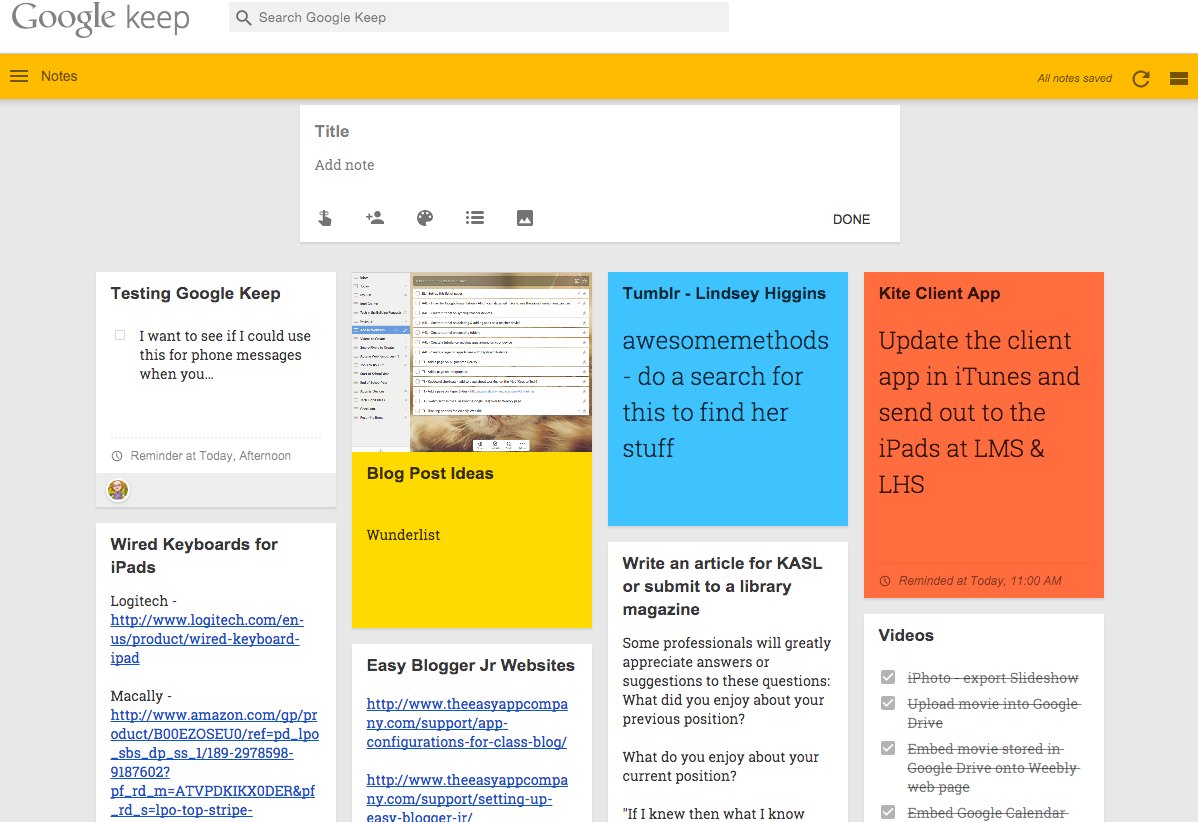
Last summer, I came upon a new tool called Google Keep. I liked it better than stickies because I could access them on any computer, but the features were limited and I couldn't access them on my Apple devices. Just this week I discovered that Google Keep has an Apple app and I've been taking a fresh look at this tool. Here's what I like about this tool:
1. It's free! Who doesn't love free resources?
2. It's tied to your Google account. You know what that means? No additional username and password to remember! Because we are a GAFE district, students can also use this tool for reminders, notes and checklists. This becomes the perfect digital agenda for students.
3. Color!!!! I'm all for using a variety of color! Google Keep allows you to change the color of your notes. I like to use this as a means of organizing my notes. For example, red notes relate to my website, green ones are informational reminders, and teal notes relate to the Intel Courses. Students could use different colors for different classes to help them stay organized.
4. You can change notes from a regular note to a checklist with one click. This is great for projects or daily to-dos, especially for those of us who like to see what we've accomplished and what is left to complete.
5. You can add reminders on your notes by clicking the reminder icon (finger with a string tied on it). Customize your desired date and time on your reminder and you are all set to receive notification reminders. No more missed deadlines!
6. With a simple drag & drop action, you can rearrange your notes and put them in any order that works for you.
7. You can search and filter your notes by words, color, sharing, lists, images, and more.
8. You can add images and websites to your notes. This would be great for collecting images and websites for a specific lesson, unit or project. You could also take a photo at a workshop of a key slide or information being presented and add it to a note. Students could take a photo of the work for the week if their teacher posts it in the classroom. This feature would also help students keep track of online photo locations for images they use on a class project.
9. You can share notes with other people by clicking on the share icon. They will receive an email message with a link to the note. This would be great for sharing project responsibilities or sending out assignments to students.
10. There is an app! Android users have always had a Google Keep app option for their devices, but until recently Apple users had to just use the Chrome web browser on their devices. Now you can see you notes and receive notifications on the go by installing GoKeep. App Drawbacks - too many ads and no search or filter option! Hopefully that will be an upcoming update. There is an alternative app option called TurboNote for Google Keep. You still have ads at the bottom of the screen, but they are not popping up over the top of your notes.
Some additional tidbits:
You can download the Google Keep app onto your computer from the Chrome Web Store.
There is a Google Keep extension - Category Tabs for Google Keep - that allows you to assign specific categories to your note colors. However, there are some glitches with filtering the colors.
This app runs offline!
Check out this video for a quick visual tour of this tool!
Mango Languages - This tool, available for FREE thanks to our Kansas State Library, will help you learn over 60 languages. You will walk through practical language lessons that provide pronunciation practice, grammar lessons, cultural information, and more. Did I mention there are English courses for non-English speakers?! Take a tour with the video below.
There is also an app for Mango Languages (available for Apple and Android devices). Once you create your account using the online website on the KS State Library page, you can log into the Mango Languages app and continue working on your lessons.
Buncee - A digital canvas where you can add content that can then be shared through email or social media. Students and teachers can use this tool to create more engaging and interactive presentations and lessons.
eMaze - This HTML5 presentation maker allows teachers and students to create slideshows, video presentations, infographics and 3D presentations. Need a quick tutorial? Check this one out from eMaze - https://www.youtube.com/watch?v=I-9nHq9ld6Q.
Visme - This another tool for creating presentations, infographics and banners. Your final products can be published via social media, on a website or downloaded.
Canva - This easy to use graphic design program will allow you and your students to create awesome graphics to share via social media, your website and blog or by downloading & printing. Get tips and ideas via the Canva Design School or create using the Canva iPad App.
Tapp Roulette - This is a "random picking" app. Need to decide who goes first in the game or who
Tapp Roulette
gets to return the computer cart? Use Tapp Roullette. Each students puts their finger on the screen and then you click 'Pick a Finger.' Tapp Roullette randomly chooses one of the fingers. You can have up to 11 fingers on an iPad and 5 fingers on the iPhone/iPod. Common Sense Media - This resource provides ratings and reviews on apps, games, books, websites and more geared toward children ages 2-17. They also provide media and technology resources for educators, including a whole curriculum for digital literacy and citizenship.
All the resources on this site are FREE!
New People to Follow
Needing to build up your PLN? Check out some of these great educators and educational supporters!
TechChef4U - This is the twitter handle used by Lisa Johnson, an educator and tech integration guru. She has done extensive work on iPads and apps in the classroom, including the publication of the TechChef4U app and the Hot Apps 4 HOTS iBook.
@259tech - This is the Wichita Public Schools Instructional Technology Twitter handle. They have resources, tools, and ideas from the classroom.
@TED-Ed - Provider links to their short, captivating educational videos and other educational resources.
@TeachingLC - The Twitter handle for Teaching with the Library of Congress. Their tweets contain primary sources, inspiration, ideas and opportunities for teachers from the world's greatest library.
@TodaysDocument - Tweets from Today in History & Daily Historical Documents from the US National Archive include loads of primary source photos that will enliven and engage your social studies classroom.
Tweets from PSNTPS
@DocsTeach - Follow the online tool for teaching with documents from the @USNATArchives. Use resources shared in their tweets to create interactive lessons with primary sources to foster historical thinking.
@coolcatteacher - This is the brand name used by Vicki David, a full time teacher and IT director in Georgia. She shares thoughts and tips on using new technology in teaching.
@justintarte - This is the twitter handle for Justin Tarte, an administrator with a passion for learning
and technology. He shares thought provoking articles and photos via his Twitter account.
@PSNTPS - This twitter handle belongs to the TPS-Barat Primary Source Nexus, an online community support resource for the TPS-Barat Library of Congress Teaching with Primary Resources Program. These send out interesting tweets ideas for combining primary resources and technology to create engaging learning for your students.
@PenguinClass - This handle for the School and Library Marketing department of Penguin Young Readers provides tweets to author interviews, book & poetry lesson ideas, book trailers and more. They will also do Skype author visits with your classroom for free. Email them at penguinauthorvisits@gmail.com and tell them what you want. For example, you want to Skype with a poet or an author who writes nonfiction, preferably about bugs.
Travis True (on Google+) - Travis is an educator in the Topeka Public Schools. He shares a lot on Chromebooks, Chrome extensions, and all things Google.
Draggo is a bookmarking tool for those websites you want to remember or use on a regular basis. You can group your bookmarks with topic specific tabs and then into various categories on each tab. Bookmarks can be moved and edited as needed. A couple years ago I created Draggo accounts for each school building (except Westside - sorry) in our district in an effort to provide links to tools and websites that the students would use regularly - or for a specific teacher - throughout the course of the school year.
In the elementary buildings, teachers have their students set the building Draggo page as their homepage whenever they get on the Internet. This makes it easier and faster for students to access the websites they need during class. Students have no need to log into Draggo. They just choose the tab they need and find the bookmark in the category given to them by their teacher. Here are the links to each building Draggo page:
I have encouraged teachers to take ownership of their building Draggo page by giving them the log in information so they can add and remove links, categories and tabs. I do ask if a specific grade or teacher has a tab that you not edit or remove their tab. We are limited to seven tabs, so if we are running out of tabs, let me know so I can assist in making some modifications. If you never received the log in information for you school's Draggo page, please email me and I will send that out to you.
Draggo is not the only bookmarking tool available, but at the time it was highly recommended. If you are interested in exploring other visual bookmarking tools to use with your students, you might check out:
For all those curiosity questions, Wonderopolis will meet your need. Check out the Wonder of
the Day or explore various wonders from the category listings. Have a specific wonder? Then go to What are You Wondering and type in your question. Great tool for extended learning for learners of all ages!
Have a student interested in creating and recording their own music. Throw them at Soundtrap,
an online music creator. You can connect your own instruments or use the software instruments to create your song recording. Use your computer mic to record your lyrics too. Soundtrap can be used on a variety of devices - Apple, Anrdoid, Linux, Windows and Chromebooks.
This provides a more extensive list of channels for educators and includes categories for the arts, foreign languages, history, and university channels.
This list by EdTechReview is grouped by the following categories: general (more for your own professional learning), physical science, engineering & technolog, and mathematics.
From Free Technology for Teachers this collection is geared toward upper elementary through high school age students. This is a good collection to have at your finger tips.
With a similar look to a Jeopardy board, teachers and students can use FlipQuiz to create reviews over class content. Simply create a free account and click the green 'Create a New Board' button to get started. Create a title for your board and up to six category headings with five questions for each category. When you launch your board into presentation mode, it will adjust according to the number of categories you actually used. For instance in this sample board, I only created three categories.
From your dashboard, you can opt to edit, launch or delete any of your boards. You also have the option to create a new board.
Since the template is already created for you, the most time consuming element of using this tool is coming up with your questions and determining the point values they should be worth. After all, you don't want a really easy question to earn you 500 points. Once created, you could use these games as a whole class competition, team competition or review practice for individual students. You can also share your boards on Twitter, Facebook and Google+. FlipQuiz is great for use on interactive whiteboards and while they don't have an app yet, you can go to the website on your iPad and work on or launch your board. According to the site, FlipQuiz works in all versions of Firefox and Chrome, but has some quirky issues with Internet Explorer 9. I also tested it on Safari and that seems to work just fine too.
On the downside, I have not found any embed option for your boards. So you have to stick with a web link when posting your boards on your website or blog. The other drawback I found when working with FlipQuiz is getting out of the presentation mode. You have to use the back arrow on your browser because there is no button to take you back your dashboard. I suppose the creators are trying to keep a clean look when the board is actually launched, but it might take you a couple times of use to remember how to get back to your other boards. Finally, FlipQuiz is listed as a beta version and I did notice a price link that is crossed out at present. I don't know if or when this tool will require you to pay for services, but that is a possibility for the future. However, until that time, take advantage of this great new tool!
I love bookmarking sites so I can get back to them easily, but it is a real issue when I use a different computer or even a different browser. I either have to set-up those bookmarks again or just do a Google search for the website. I have used some online bookmarking sites in the past like Diigo and Draggo and even blogged on the topic. I like both of these sites for certain reasons, but they just weren't fitting my need for those everyday websites I use both at work and home. Last year I found a new bookmarking tool called Symbaloo. The biggest difference with Symbaloo is the visual appeal to the site.
I can create my bookmark links manually or with a bookmarklet, but I can also add the name of the site, an icon and color code it for my page. I can also create various webmixes, which are tabs to help me group my bookmarks. For example, I have one with daily links, web tools I use regularly and how-tos for quick reference. I can move the links around on my webmix page or I can move it to another webmix. I can also customize the background for each webmix. The best feature about Symbaloo is I can use any computer, any browser and access my essential bookmarks at one website.
If you love to have websites at your fingertips, I encourage you to try out a bookmarking site like Symbaloo, Draggo or Diigo.
Website Wednesday is back! For those of you new to our blog, I compile a list of 5-10 websites that can be used by educators for student multimedia projects, lesson plans, professional development and more. Use what you can and push the rest to the side. You can always come back later if you feel like you missed something.
Don't forget, you can access and search all the sites bookmarked for Website Wednesdays at https://www.diigo.com/user/gwenlehman. Search by Tags, lists, titles or URLs.
Lesson plans based on movies - provides a brief synopsis of the film, rationale for use in the classroom, introduction questions, discussion questions and end projects all related to the movie. Also provides suggested films for various content areas, film study worksheets, tie-ins to common core, set-ups for subs and more.
Create videos online from your still photos. Upload photos; add a theme, text and music; watch the magic. 30 second videos can be created for free. Great for book projects, field trips, art showcase and more. Completed videos can be downloaded, embedded or shared.
Create digital posters with images, videos, audio, text and graphics that can be shared or embedded onto a website. Great for presenting research, visual vocabulary meanings, introduction of self, book project and more.
Visual bookmarking site. Organize like bookmarks on a tab, keep tabs private or make them public and color code your resources. Create a login for free!
Most elementary teachers have a wall chart with clothespins that you use to mark student behavior throughout the day. Imagine having a system that not only marks the moment, but tracks and reports on the day as a whole. Now imagine students and their parents logging on to a website at night to review and talk about their behavior in school. Meet Class Dojo, a behavior management tool that records all this information for you on each student. All you need to do is give points for the good and not so good things on each student throughout the day. You can also track your class as a whole to check for specific trends or patterns. With the aid of a mobile device, your task gets even easier as you travel around the room and track student behaviors. This gives teachers a better opportunity to catch their students making good choices!
Select your grade level & content area
Give your class a name
*You can always go into the basic info on your class an edit this information later. #2 Add Students
If you have a student list on your computer already, you can copy and paste the list to add all your students at one time. Otherwise you'll need to enter each student name individually.
#3 Customize Behaviors
Edit the default behavior icons and text OR Add your own behaviors
Behaviors can be both positive and negative
Don't forget to save your changes!
#4 Start Tracking Behaviors
Simply click on a student's name and choose the behavior you want to assign. A bubble with a number will appear by their name. Points will add and subtract throughout the day and the bubble will remain green if they've kept enough positive behaviors. If they are being too negative that day, their bubble may appear red with a negative number.
Extra Features:
You can award multiple students at one time. Just click 'Award Multiple Students' and select the students you want to award for the same behavior. Select the behavior to be awarded and you're done!
Use the Timer feature as a stop watch or a countdown tool.
You can also reset your student bubbles anytime during the day or at the start of a new day.
Under the Settings feature you can edit specific class features. For example, choose to have two separate point bubbles for each student, only show the positive awards and change the student order.
When you end your class for the hour or day, go to the Report page. You will see the behavior of your class as a whole and individually. The report also indicates the specific behaviors that were awarded. You can customize your date range so you can view a single day, month or the entire year. You can also sort your student list by most positive, most negative, highest combined and more.
Don't forget to checkout the Class Dojo App - available on iPhone, iPod and iPad!
I attended a librarian workshop in Dodge City on Saturday and heard some great presenters on various technology and book topics. One of the sessions focused on websites and apps to use in the classroom and library. Here are the ones I thought were the best...
You have been to this site before, but I found out there are student interactive games, graphic organizers and more that you can access. You can refine your search by grade level, type of interactive tool, learning objective and more. Some interactives include Trading Card Creator, Cube Creator, Letter Generator, Compare & Contrast Map and more
Being a fan of the old Fractured Fairy Tales on Rocky and Bullwinkle, I found this interactive centering around fractured fairy tales. Students get to read an animate fractured fairy tale and then write their own. Here are a few screen shots of this interactive tool:
Too Noisy - This free app helps you monitor the classroom noise level. You can adjust the sensitivity level on the app. If the noise level gets too high, your smiley face starts to frown. You could project this on the screen when students are working with partners or in small groups to help them keep track of the noise level.
Random Name Selector - This free app randomly selects student names from the magic hat. All you do is add a group and then add names to your group. Then you hit the ? to have the hat select a name. The hat will go through all the names in your group before putting everyone back in for selection.
Chicktionary Lite - This free app provides you a set number of letters to create words from. You are given the how many words and how many letters per word that you can make from your collection of letters. The twist? Everything is chicken and egg related. A great appeal for kids!
I attended my Tech Integration Group this past Friday at Essdack and left with some great tools & ideas to share.
Upcoming Workshops through Essdack
April 2, 2013 - Workshop on eBooks & how to make them
May 29-31, 2013 - Wind Energy Workshop (based on a STEM Initiative)
You will spend the 3 days building wind turbines.
July 17-19, 2013 - Podstock
A tech integration conference for anyone interested in learning more about technology.
Show-N-Tell
COOL Furniture - We tried out a standing table and Hokki Chairs. The table is great for having small group conversations or getting up and working on the laptop or iPad. The chairs have a curved bottom so students can rock and move in their seats. Great for those antsy kiddos & adults.
EssayTagger - Common Core Rubric Creation Tool (no registration or login required)
You can print, save as a pdf or download any rubric you create.
tellagami - Great digital storytelling tool available on the iPod and iPad. You insert your own background images, create your avatar and record your story.
Class ideas:
What I did on my Summer Vacation
Explain a historical image
Give background on a historical figure
Book report using the setting as the background image
Create a real-world math problem
Makey Makey - this one you just have to see to understand
So, this was new to me, but basically it is a warning system for people who are downloading from sites with pirated materials. Some Internet Service Providers are implementing this process already. We looked at a few sites that had samples of the alert messages and a little more information about Six Strike Copyright Law. During our discussion, we questioned how this would impact schools, but I don't think we'll really know until this gets into full implementation.
Create a book trailer - make a QR code for the trailer and put the QR code inside the book in the library for other students
Make an avatar of what the character(s) look like to you and then put them in your book trailer or use them to create a movie poster for your book - use faceyourmanga to create your avatar
At the end of the day, we had a Skype presentation on creating infographics with powerpoint (or any slideshow program). However, I will write this up later as a separate blog post.
The best trivia I learned on Friday was "Rabbit, rabbit, rabbit." This is a common British superstition which is also popular in the United States, especially in Nantucket, Cape Cod and other towns within Massachusetts. The premise is to wake up on the first day of the month and say "rabbit, rabbit, rabbit." By doing so, you are suppose to receive a present by the end of the month. Stash this trivia fact away in case you end up on Jeopardy one day!
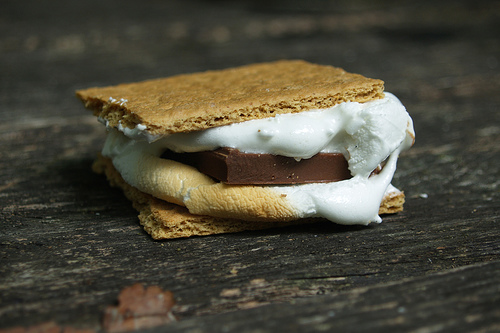
When I hear the word s'more, I visualize those great chocolatey, gooey campfire delights. As you enjoy this mountain of decadence, the heated chocolate drips out and the marshmallow oozes out burning your finger from the heat. But you savor every bite. When it's gone, you make another because you only get to enjoy this treat around those late night summer campfires.
On this winter day, my heart was elated to find another s'more. It might not be ooey, gooey, chocolatey, but it's still a great treat to explore! Smore is an online flyer creator that can publish your flyers instantly via Facebook, email or embedding to a website or blog. When you create your flyer, you can add text, photos, videos and audio. You can choose from various design backgrounds and colors. The most difficult element in creating a flyer is deciding what you would like to say.
The following video will walk you through a short tutorial on using smore:
Friday, I spent the day at Essdack with my Tech Integration Group. They are an awesome group of people who share their expertise, ideas and inspiration. One of the topics we focused on was the 21st Century Teacher. A site called Simple K12 posted a list of 21 Signs You're a 21st Century Teacher. The tasks are things you already do in your classroom, but then took it to the next level with the connection to technology. After reading over the list, we voted on the top 5 items through Google Moderator. (Google Moderator allows you to post topics or ideas that people can vote up or down. We use this each month to decide on the topics we will cover at our meetings.) From there, we took the top 5 items and created Wallwisher boards for each topic. We then spent time adding ideas, tools and suggestions for supporting teachers to get there. Here our boards and suggestions:
These boards are still being added to, but they are a good starting place. Personally, I had used Wallwisher in the past, but wasn't a huge fan. I started using another tool, Lino, which was like Wallwisher. Both are electronic bulletin boards centered around a specific question or topic. Then you open the board so others can contribute resources to the topic or answer the posted question. Either tool would be great for exit questions, brainstorming for a project or paper or collecting online resources centered around a topic. I could see using this as part of a web evaluation activity. The students have to find a reliable website related to a specific topic everyone is researching. They could give the link and explain how they know it is a reliable site. Here is a sample Lino canvas I used this summer during one of our training sessions:
After working with the new Wallwisher, I'm going to give it another try. Although Wallwisher doesn't have an app for the iPad, I can still go to the internet on the iPad and use Wallwisher to create new boards or respond to boards. Tom Barrett has a slideshow showing several interesting ways to use Wallwisher in the classroom. On his blog, Sean Banville provides 105 ideas for using Wallwisher in the classroom.
So, are you a 21st century teacher? Are there any signs that you use in your classroom already? Do any of the signs inspire you to try something new in your classroom?


 Tackk